Showing posts with label android. Show all posts
Showing posts with label android. Show all posts
Wednesday, February 18, 2015
Top 5 Cheapest Android Tablets below Rs 5000 in India in 2013
Hello friends, this is first time that i am writing about gadgets. I hope you will all like this article. In this article i have compiled some tablets with good performance and very low price. So just take a look on them and let me know which one you like by commenting below.
Also Read: The 5 biggest tech myths prevailing among common man

Price: Rs. 4699
Operating System: Android OS, v4.0.4 (Ice Cream Sandwich)
Processor: Yes, Cortex-A8, 1.2GHz Processor
Touch Screen: Yes, Capacitive Touchscreen, 800 x 480 px
Sensors: G-Sensor and Accelerator Sensor
Camera: Yes, Rear 2.0 MP Camera, Front 0.3 MP, VGA Camera
Internal Memory: Yes, 4 GB, 512 MB RAM
External Memory: Yes, Up to 32 GB
GPRS: No
Bluetooth: No
Wi-Fi: Yes, Wi-Fi 802.11 b/g/n
Port: Yes, USB 2.0
Edge: No
3G: Yes, External 3G USB Dongle (Supports Tata Photon+)
Battery: 4000 mAH

Price: Rs. 4990
Operating System: Android OS, v4.0 (Ice Cream Sandwich)
Processor: Yes, 1.2 GHz Processor
Touch Screen: Yes, Resistive Touch Screen, 800 x 480 px
Sensors: G-Sensor, Motion Sensor
Camera: Yes, 0.3 Mega Pixels, VGA Front Camera
Internal Memory: Yes, 4 GB, 512 MB RAM
External Memory: Yes, Up to 32 GB
GPRS: No
Bluetooth: No
Wi-Fi: Yes, Wi-Fi Support
Port: Yes, USB 2.0
Edge: No
3G: Yes, External 3G USB Dongle
Battery: 3600 mAH

Price: Rs 4999
Operating System: Android OS, v4.0.3 (Ice Cream Sandwich)
Processor: Yes, Cortex A8, 1GHz Processor
Touch Screen: Yes, Capacitive Touch screen, 800 x 480 px
Sensors: G-Sensor
Camera: Yes, 0.3 Mega Pixels, VGA Front Camera
Internal Memory: Yes, 4 GB, 512 MB DDR3 RAM
External Memory: Yes, Up to 32 GB
GPRS: No
Bluetooth: No
Wi-Fi: Yes, Wi-Fi 802.11 b/g/n
Port: Yes, USB 2.0 HS, Host USB + Mini USB Ports, HDMI 720p HD Output, (Mini Type C), OTG Port, DC-in Jack
Edge: No
3G: Yes, Supports 2G & 3G USB Dongles (GSM & CDMA)
Battery: 3000 mAH
Also Read: How to format an unformatable Pendrive

Price: Rs. 5290
Operating System: Android OS, v4.0.4 (Ice Cream Sandwich)
Processor: Yes, 1.2 GHz Processor
Touch Screen: Yes, Capacitive Touch screen, 800 x 480 px
Sensors: 3D G-Sensor for Gaming Experience
Camera: Yes, 2.0 Mega Pixels, Front Camera
Internal Memory: Yes, 4 GB, 512 MB RAM
External Memory: Yes, Up to 32 GB
GPRS: No
Bluetooth: No
Wi-Fi: Yes, Wi-Fi 802.11 b/g/n
Port: Yes, Micro USB 2.0, HDMI Port
Edge: No
3G: Yes, External 3G USB Dongle
Battery: 2600 mAH
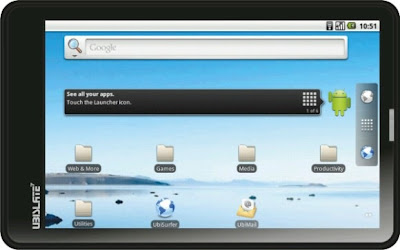 Price: Rs. 3999
Operating System: Android 2.3.3 Gingerbread
Processor: 700 MHz Cortex A8 processor
Touch Screen: Yes, Resistive touch screen, 800 x 480 px
Internal Memory: Yes, 2 GB, 256 MB RAM
External Memory: Yes, up to 32 GB
Wi-Fi: Yes
GPRS: network connectivity with SIM support
Port: USB ports for connectivity and data transfer and 3G modem connection
Battery: 3200 mAH
Source: http://www.era.la/top-5-best-android-tablets-below-rs-5000-in-india.html
Also Read: The 5 biggest tech myths prevailing among common man
Micromax Funbook Infinity P275
Operating System: Android OS, v4.0.4 (Ice Cream Sandwich)
Processor: Yes, Cortex-A8, 1.2GHz Processor
Touch Screen: Yes, Capacitive Touchscreen, 800 x 480 px
Sensors: G-Sensor and Accelerator Sensor
Camera: Yes, Rear 2.0 MP Camera, Front 0.3 MP, VGA Camera
Internal Memory: Yes, 4 GB, 512 MB RAM
External Memory: Yes, Up to 32 GB
GPRS: No
Bluetooth: No
Wi-Fi: Yes, Wi-Fi 802.11 b/g/n
Port: Yes, USB 2.0
Edge: No
3G: Yes, External 3G USB Dongle (Supports Tata Photon+)
Battery: 4000 mAH
Zync Z919
Operating System: Android OS, v4.0 (Ice Cream Sandwich)
Processor: Yes, 1.2 GHz Processor
Touch Screen: Yes, Resistive Touch Screen, 800 x 480 px
Sensors: G-Sensor, Motion Sensor
Camera: Yes, 0.3 Mega Pixels, VGA Front Camera
Internal Memory: Yes, 4 GB, 512 MB RAM
External Memory: Yes, Up to 32 GB
GPRS: No
Bluetooth: No
Wi-Fi: Yes, Wi-Fi Support
Port: Yes, USB 2.0
Edge: No
3G: Yes, External 3G USB Dongle
Battery: 3600 mAH
BSNL Penta T-Pad IS701C
Operating System: Android OS, v4.0.3 (Ice Cream Sandwich)
Processor: Yes, Cortex A8, 1GHz Processor
Touch Screen: Yes, Capacitive Touch screen, 800 x 480 px
Sensors: G-Sensor
Camera: Yes, 0.3 Mega Pixels, VGA Front Camera
Internal Memory: Yes, 4 GB, 512 MB DDR3 RAM
External Memory: Yes, Up to 32 GB
GPRS: No
Bluetooth: No
Wi-Fi: Yes, Wi-Fi 802.11 b/g/n
Port: Yes, USB 2.0 HS, Host USB + Mini USB Ports, HDMI 720p HD Output, (Mini Type C), OTG Port, DC-in Jack
Edge: No
3G: Yes, Supports 2G & 3G USB Dongles (GSM & CDMA)
Battery: 3000 mAH
Also Read: How to format an unformatable Pendrive
Karbonn Smart Tab3 Blade
Operating System: Android OS, v4.0.4 (Ice Cream Sandwich)
Processor: Yes, 1.2 GHz Processor
Touch Screen: Yes, Capacitive Touch screen, 800 x 480 px
Sensors: 3D G-Sensor for Gaming Experience
Camera: Yes, 2.0 Mega Pixels, Front Camera
Internal Memory: Yes, 4 GB, 512 MB RAM
External Memory: Yes, Up to 32 GB
GPRS: No
Bluetooth: No
Wi-Fi: Yes, Wi-Fi 802.11 b/g/n
Port: Yes, Micro USB 2.0, HDMI Port
Edge: No
3G: Yes, External 3G USB Dongle
Battery: 2600 mAH
Aakash 2
Operating System: Android 2.3.3 Gingerbread
Processor: 700 MHz Cortex A8 processor
Touch Screen: Yes, Resistive touch screen, 800 x 480 px
Internal Memory: Yes, 2 GB, 256 MB RAM
External Memory: Yes, up to 32 GB
Wi-Fi: Yes
GPRS: network connectivity with SIM support
Port: USB ports for connectivity and data transfer and 3G modem connection
Battery: 3200 mAH
Source: http://www.era.la/top-5-best-android-tablets-below-rs-5000-in-india.html

Monday, February 16, 2015
How You Can Keep Your Android Phone Safe From Hackers

Right when the market is flooding with the super gadgets, there is a subsequent increment in hackers who keep agitating smart phones with their nasty techniques. Basically smartphones are used for several purposes both online and offline almost like PC or laptops but as the same it also has possibility of getting hacked like any other sophisticated gadget. Hence, it is essential to pay attention towards the application that you use or install. Also a kind a data that you are storing in your smartphone matters a lot in this issue of hacking the android device.
Also Read: The Top 4 Websites to Create Android Apps Online for Free
Also Read: The Top 8 Best Alternatives to Google Play Store to Download Android Apps for Free
This article will focus on the tips which can empower the smartphones safety from hackers.
Security lock
It is the basic thing that you can access to secure data on the mobile handset. It is advised to have a password with the combination of both characters, symbols and numbers. It is essential to ensure that in case there is a password failure you need check change the password.
Connectivity
Some of the smartphone users keep their Bluetooth and Wi-Fi always on which is not good for the mobile phone’s health. Turn off these features when it is not required as they often connect data to the network that you are using. Don’t switch over to too many networks as it put you to the hacker’s risk.
Use minimal amount of public network
As per the current research on the hacking problem, using public Wi-Fi is the most dangerous thing to do. Connecting your device to the public network as well as hotspot is pretty risky thus you need to ensure that the concerned network is safe and secured. Beware of not using online banking or any confidential document on the public connectivity.
Free but fatal apps
Don’t get attracted with too many free applications and always go for the trusted and authenticated websites. People who tend to download the application from the random website may be targeted by the malware, spyware, worms and viruses. Don’t allow these applications to access your password in any case.
Keep your device clean
It is essential to keep your device clean and healthy and install the latest and updated version of security system. If you are using too much of internet connectivity then install both the antivirus and internet security.
Mobile theft
Mobile theft is increasing day by day and then it hardly takes anytime to lose your mobile phone. One of the major problems comes on your way then it losing all the confidential data so need to use certain applications which can immediately lock all the stored data.
The remote-wipe app
When nothing works, you can take care of your device by installing this wonderful application that will help you to remote access your device and its content.
Also Read: The 4 Best Live Chat Mobile Applications
Also Read: 4 Best Tips to Clean Your Touch Screen Device
Android rooted phones come at the bigger risk
Rooting android phones open dimension of exploring new features but at same it also becomes a bit risky while using the unauthorised apps and software.
About Author:
This is a guest post written by Tarun, He is a blogger and writes about Android on his blog AndroidCubes. He recommends you to check his latest guide to Root Micromax A35 Bolt.
Wednesday, February 4, 2015
Android beginner tutorial Part 32 ListView widget
In this tutorial well learn how to use ListView widgets.
A ListView is a very useful and common widget that lets the user scroll through a list of items. There are multiple ways of using it. Today well see how to implement a ListView as a part of the layout of an Activity, how to display items from array in it and how to handle user item clicks.
Lets open our test application project and go to the acitivity_main.xml layout file.
Here add a simple LinearLayout, that contains a TextView and ListView. Give them ids and sizes as shown below:
Now go to MainActivity.java class.
Declare an array of contact names:
Declare a TextView variable:
In the onCreate() function we set the value of "text" to reference the "text" TextView in the layout. We declare a "list" variable which references the "list" ListView in the layout, then set an adapter for it using a setAdapter() method, and add a click listener using setOnItemClickListener():
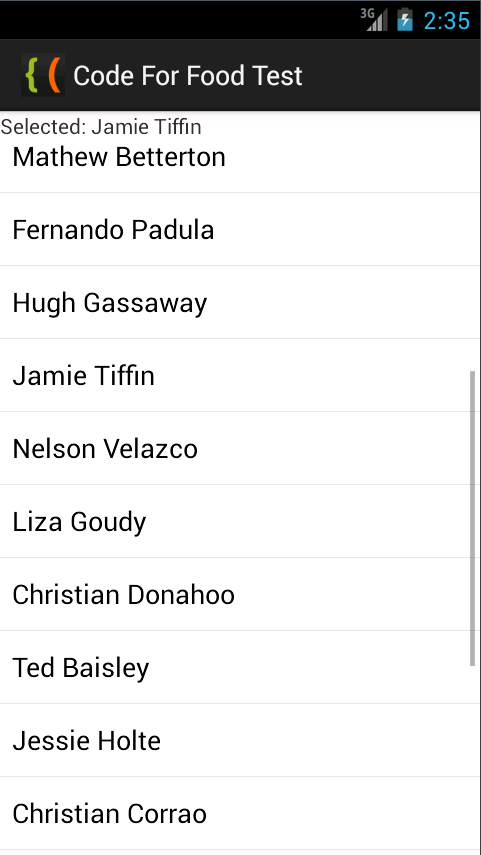
The OnItemClickListener instance contains a public function onItemClick(), which updates the text of our TextView. It displays the name of the selected contact using the provided "position" value, which is the index value of that contact in the array:
Full code:
The results look like this:
Thanks for reading!
Read more »
A ListView is a very useful and common widget that lets the user scroll through a list of items. There are multiple ways of using it. Today well see how to implement a ListView as a part of the layout of an Activity, how to display items from array in it and how to handle user item clicks.
Lets open our test application project and go to the acitivity_main.xml layout file.
Here add a simple LinearLayout, that contains a TextView and ListView. Give them ids and sizes as shown below:
<LinearLayout xmlns:android="http://schemas.android.com/apk/res/android"
    xmlns:tools="http://schemas.android.com/tools"
    android:layout_width="match_parent"
    android:layout_height="match_parent"
    android:orientation="vertical"
    tools:context=".MainActivity" >

    <TextView
        android:layout_width="match_parent"
        android:layout_height="wrap_content"
        android:id="@+id/text"/>

    <ListView
        android:id="@+id/list"
        android:layout_width="match_parent"
        android:layout_height="match_parent"
        />

</LinearLayout>
Now go to MainActivity.java class.
Declare an array of contact names:
final String[] contacts = {"Fernando Reigle","Lorrie Chamberland","Earlene Cully","Lorrie Down",
"Serena Adolph","Sofia Tilford","Tyrone Heiner","Mathew Betterton","Fernando Padula","Hugh Gassaway",
"Jamie Tiffin","Nelson Velazco","Liza Goudy","Christian Donahoo","Ted Baisley","Jessie Holte","Christian Corrao",
"Saundra Swoboda","Margery Canez","Lance Midyett","Jamie Burlew","Allyson Trudel","Tyrone Spofford"};
Declare a TextView variable:
public TextView text;
In the onCreate() function we set the value of "text" to reference the "text" TextView in the layout. We declare a "list" variable which references the "list" ListView in the layout, then set an adapter for it using a setAdapter() method, and add a click listener using setOnItemClickListener():
@Override
protected void onCreate(Bundle savedInstanceState) {
super.onCreate(savedInstanceState);
setContentView(R.layout.activity_main);

text = (TextView) findViewById(R.id.text);
ListView list = (ListView) findViewById(R.id.list);
list.setAdapter(new ArrayAdapter<String>(this, android.R.layout.simple_list_item_1, contacts));
list.setOnItemClickListener(onClick);
}
The OnItemClickListener instance contains a public function onItemClick(), which updates the text of our TextView. It displays the name of the selected contact using the provided "position" value, which is the index value of that contact in the array:
public OnItemClickListener onClick = new OnItemClickListener() {
  @Override
  public void onItemClick(AdapterView<?> parent, View view, int position, long id) {
    text.setText("Selected: " + contacts[position]);
  }
};
Full code:
package com.kircode.codeforfood_test;

import android.app.Activity;
import android.os.Bundle;
import android.view.Menu;
import android.view.View;
import android.widget.AdapterView;
import android.widget.AdapterView.OnItemClickListener;
import android.widget.ArrayAdapter;
import android.widget.ListView;
import android.widget.TextView;

public class MainActivity extends Activity{

final String[] contacts = {"Fernando Reigle","Lorrie Chamberland","Earlene Cully","Lorrie Down",
"Serena Adolph","Sofia Tilford","Tyrone Heiner","Mathew Betterton","Fernando Padula","Hugh Gassaway",
"Jamie Tiffin","Nelson Velazco","Liza Goudy","Christian Donahoo","Ted Baisley","Jessie Holte","Christian Corrao",
"Saundra Swoboda","Margery Canez","Lance Midyett","Jamie Burlew","Allyson Trudel","Tyrone Spofford"};

public TextView text;

@Override
protected void onCreate(Bundle savedInstanceState) {
super.onCreate(savedInstanceState);
setContentView(R.layout.activity_main);

text = (TextView) findViewById(R.id.text);
ListView list = (ListView) findViewById(R.id.list);
list.setAdapter(new ArrayAdapter<String>(this, android.R.layout.simple_list_item_1, contacts));
list.setOnItemClickListener(onClick);
}

public OnItemClickListener onClick = new OnItemClickListener() {
  @Override
  public void onItemClick(AdapterView<?> parent, View view, int position, long id) {
    text.setText("Selected: " + contacts[position]);
  }
};

@Override
public boolean onCreateOptionsMenu(Menu menu) {
// Inflate the menu; this adds items to the action bar if it is present.
getMenuInflater().inflate(R.menu.activity_main, menu);
return true;
}

}
The results look like this:
Thanks for reading!
Tuesday, February 3, 2015
ONYO Winner 32 GB 9 7 Android Tablet Firmware

ONYO Winner 32 GB 9.7 Firmware Update.
DOWNLOAD OFFICIAL FIRMWARE
Subscribe to:
Posts (Atom)